How do I activate my student access?

Follow these steps to activate your child’s digital license. Before you begin, have the digital license code provided by the school, as well as the physical books with their activation codes, ready.

1. Go to the activation page

Access the Milton Education activation link. https://license.miltoneducation.com/

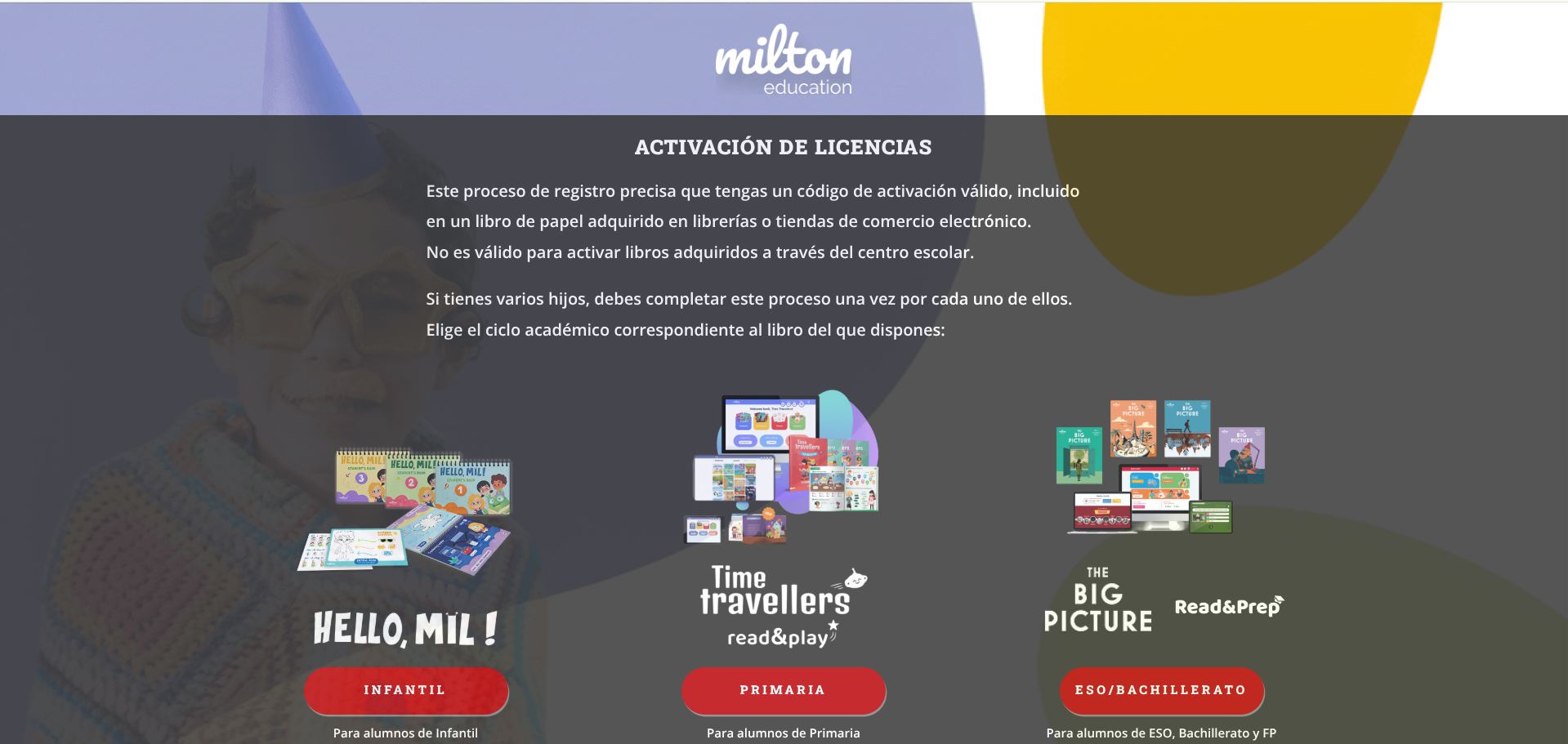
On the initial screen, choose the level that corresponds to your license:

Infantil: if your child uses Hello, Mil!

Primaria: if your child uses Time Travellers, Arts & Crafts, and/or Read & Play

ESO/BACHILLERATO: if your child uses The Big Picture, Eagles, Brilliant, Brilliant Bright Future, Amazing and/or Read & Prep

2. Enter the license code

On the Activación de licencias screen, you will see several fields. If you have a Student’s Book and/or Activity Book, enter the code from your Student Book and/or Activity Book that appears in the book.

Important: Enter the code respecting the letters and numbers. The hyphen is not necessary, as it will appear automatically, and you must be especially careful with capital O’s and zeros.
If you have a Read & Play or Read & Prep digital license code:

  1. Tick the box Tengo un código de Read & Play o Read & Prep
  2. Enter the code in the field below.
  3. Check that the code is written correctly.
  4. Click Continuar.

Important: Enter the code, respecting the letters and numbers. You don’t need to type the hyphen, as it will appear automatically.

Did your school not give you a Read & Play or Read & Prep code but you want that resource? You can buy it here.

3. Select the school

Next, you will need to indicate the school.

  1. Write the school’s postal code.
  2. Select the school from the list.
  3. Click Continuar.

If your school is not listed, select the following option:: El centro escolar no está en el listado.

If you are activating a textbook license as an individual and do not want it to be associated with the school, select the option “Soy un particular y quiero activar la licencia para uso no asociado a un centro escolar.” This way, teachers will not be able to send assignments to the student.

4. Complete the student’s details

Enter your child’s details:

  1. First name
  2. Last name
  3. Course and class.

Then click Continuar.

5. Complete the details of the parents or guardian

Fill in the parent or guardian information:

  1. First and last name
  2. Email
  3. Password

Tick the box to accept the Legal Terms and Privacy Policy.

Then click Continuar.

6. Save the username and password

When the license is successfully activated, a confirmation screen will appear.

On that screen you will see:

  • The license validity date
  • The student’s username
  • Password
  • The link to access the platform

You will also receive an email with this information.

Tip: Keep your username and password in a safe place. You’ll need them to access the platform.

7. Access the platform

To log in as a student, use the link that appears on the confirmation screen and enter your username and password.

https://hello.miltoneducation.com/

If you want to access as a parent or guardian, enter the family panel with the email used during activation.

https://panel.miltoneducation.com/

If you have more than one child and need to activate another license, click Activar otro hijo/a and repeat the process with the new code.

Do you need help?

If you have any problems during activation, check that the code is spelled correctly and that you have selected the school correctly.

If the problem persists, please contact the Milton Education support team.

Still have questions?